
If you work from a laptop at home, the core problem is that the screen and keyboard are attached. Put the screen at eye level and the keyboard ends up too high; put the keyboard at elbow height and you look down all day. The best first upgrade for most people is a laptop stand plus a separate keyboard and mouse (often under about $100 total as of September 2026). If you regularly juggle multiple windows, spreadsheets, or code, an external monitor is the bigger productivity jump — and many people end up using both.
This guide compares the two paths, explains the hidden requirements (ports, desk depth, peripherals), and gives budget bands. It is research-based guidance, not a hands-on product ranking.
Quick answer by situation
| Your situation | Best first move |
|---|---|
| Laptop only, neck discomfort from looking down | Laptop stand + external keyboard and mouse |
| Small desk or you move between rooms | Laptop stand (folds away) |
| Heavy multitasking, spreadsheets, coding, design | External monitor |
| Frequent video calls | Laptop stand (raises the built-in camera toward eye level) or a monitor with a separate webcam |
| You want the most complete setup | Monitor at eye level + laptop on a stand beside it as a second screen |
Why laptops are hard on posture
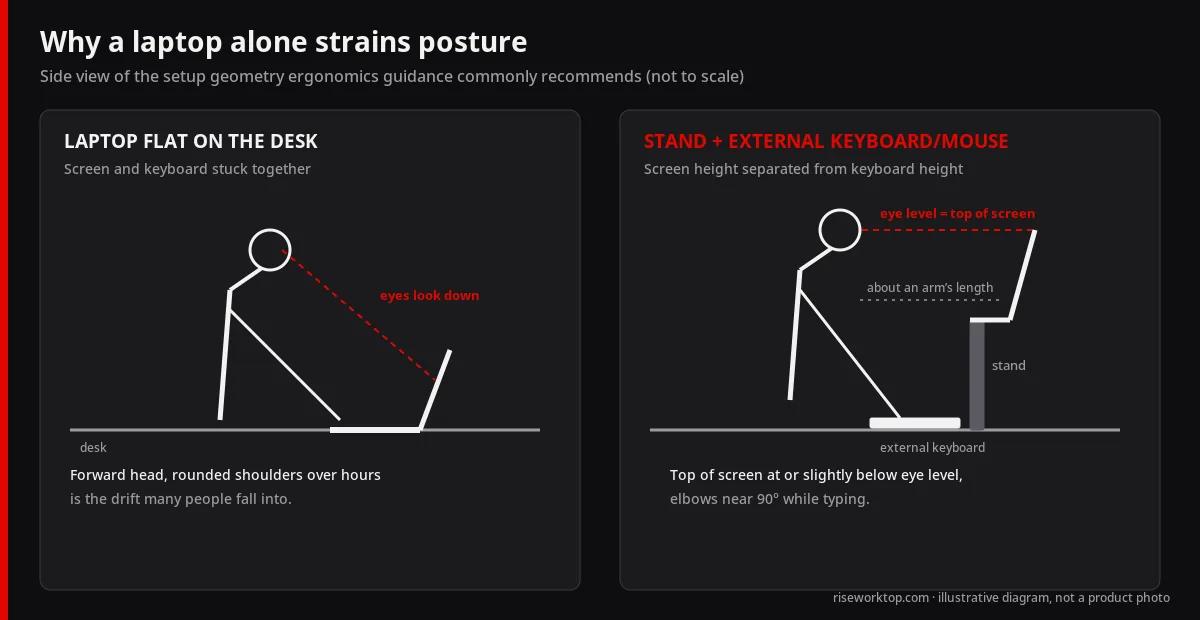
Laptop screens usually sit far below eye level when the laptop is on a desk. Over hours, many people drift into a forward-head, rounded-shoulder posture. The fix is not a magic gadget — it is separating the screen height from the keyboard height. Both a stand and a monitor do that, as long as you also add an external keyboard and mouse.
We cannot promise any product prevents pain. If you have ongoing discomfort, a health professional is the right resource. What we can do is explain the setup geometry that ergonomics guidance commonly recommends: the top of the screen at or slightly below eye level, the screen roughly an arm’s length away, and elbows near 90 degrees while typing.
Option 1: Laptop stand (plus keyboard and mouse)
What you get
- Screen raised toward eye level
- Built-in camera raised too, which usually improves call framing
- Better airflow under the laptop on many stand designs
- Small footprint and often portable
What you must add
A stand without an external keyboard and mouse makes typing worse, not better. Budget for both. Our keyboard and mouse guide for home office beginners covers layouts, wireless trade-offs, quiet switches, and how much desk mat the pair needs.
Stand types
- Fixed-angle risers: simple and stable; limited height adjustment
- Adjustable folding stands: portable, multiple heights; check wobble when typing on the laptop itself
- Vertical stands: hold a closed laptop upright when you use it only with an external monitor (clamshell mode)
- Laptop tray on a monitor arm: saves desk space; confirm the arm’s weight range
Limits
- Screen size stays the same — typically 13–16 inches
- Small text at arm’s length can push you to lean forward again
- Very tall users may need a taller stand than most models offer
Option 2: External monitor
What you get
- Much more screen area; a 27-inch monitor offers far more workspace than a 14-inch laptop
- Easier side-by-side windows
- A screen you can position independently with a stand or arm (our monitor riser vs monitor arm comparison covers which one fits)
Hidden requirements
- Ports. Check what your laptop has: HDMI, USB-C with DisplayPort Alt Mode, or Thunderbolt/USB4. Not every USB-C port carries video — look for the display or Thunderbolt icon or read the spec sheet.
- External display limits. Some laptops, including certain base-chip models, support only one or two external displays. Confirm before planning a dual-monitor setup.
- Power. Monitors with USB-C power delivery can charge your laptop over the same cable. Check that the wattage is enough for your laptop.
- Desk depth. Larger monitors need distance. Our monitor size and resolution guide covers 24 vs 27 vs 32 inches and 1080p vs 1440p vs 4K.
- Keyboard and mouse. Still required unless the laptop stays open in front of the monitor as a keyboard (which reintroduces the looking-down problem).
Option 3: Both — the common “complete” setup
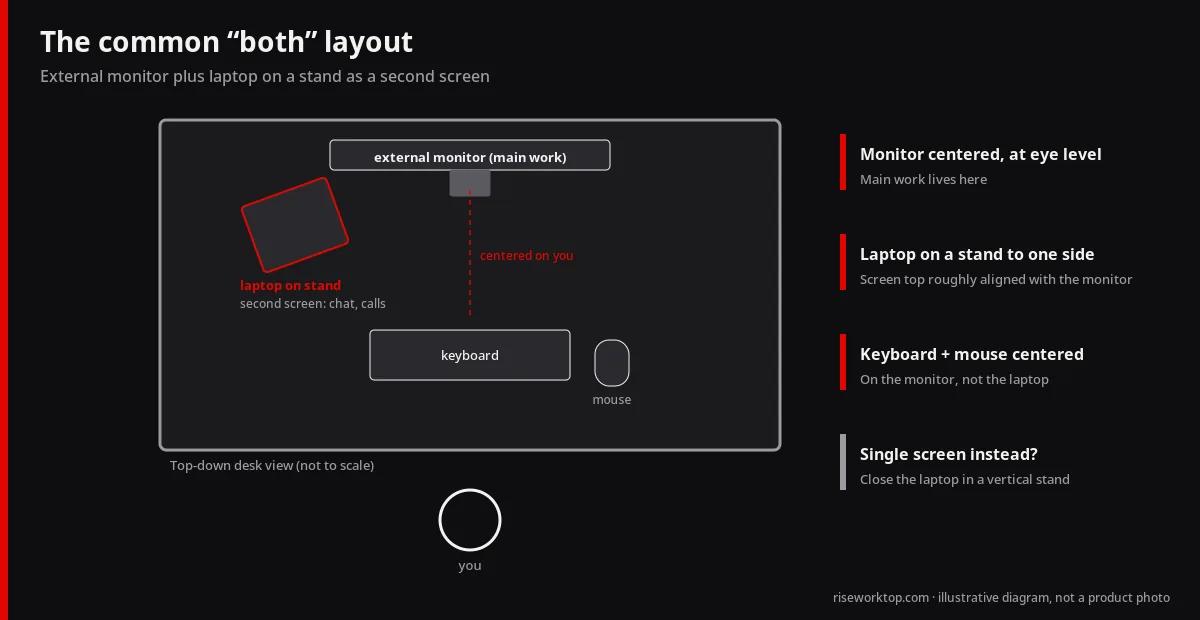
A popular layout:
- External monitor centered in front of you at eye level
- Laptop on a stand to one side, screen top roughly aligned with the monitor
- External keyboard and mouse centered on the monitor
This gives you two screens with only a stand as the extra purchase. The laptop can handle chat, email, or video calls while the monitor holds your main work. If you prefer a single screen, close the laptop in a vertical stand.
Comparison dimensions
| Dimension | Laptop stand + peripherals | External monitor + peripherals |
|---|---|---|
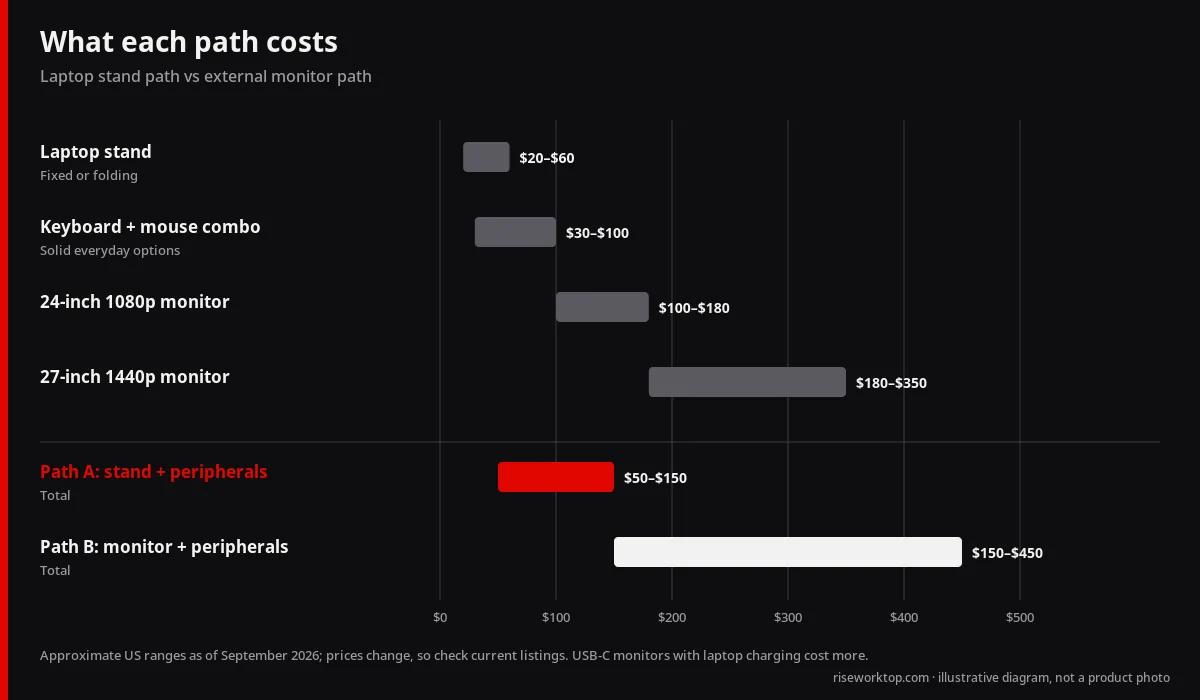
| Approx. cost (as of Sep 2026) | About $50–$150 total | About $150–$450 total (monitor plus keyboard and mouse) |
| Screen area | Same as laptop | Much larger |
| Portability | High | Low |
| Desk space | Small | Moderate to large |
| Call camera height | Improves built-in camera angle | May need a separate webcam |
| Setup complexity | Very low | Moderate (ports, cables, scaling) |
Budget bands (approximate, US, as of September 2026)
- Laptop stands: about $20–$60 for most fixed and folding designs; premium aluminum or arm-mounted trays can cost more
- Keyboard and mouse combos: about $30–$100 for solid everyday options
- 24-inch 1080p monitor: often about $100–$180
- 27-inch 1440p monitor: often about $180–$350
- USB-C monitors with laptop charging: usually a premium over similar HDMI-only models
Prices change often, so treat these as rough ranges and check current listings.
Video calls: which path looks better?
A laptop stand lifts the built-in camera closer to eye level, which avoids the unflattering looking-up angle. With an external monitor, you will likely look at the monitor while the laptop camera films you from the side — a mismatch that makes eye contact awkward. The fix is a webcam on top of the monitor. See webcam vs laptop camera for remote work for what actually matters, including lighting.
Setup checklist
- Top of the main screen at or slightly below eye level
- Screen about an arm’s length away (farther for larger monitors)
- External keyboard and mouse at elbow height
- Laptop ports verified for video output and display count
- Charging plan (USB-C power delivery or laptop charger routed neatly)
- Camera position matches where you look during calls
- Cables secured so they do not drag the laptop off the stand
If you are building your whole desk from scratch, pair this with the home office setup checklist for beginners.
Common mistakes
- Buying a laptop stand and still typing on the raised laptop keyboard
- Assuming every USB-C port outputs video
- Putting a 27-inch monitor on a 20-inch-deep desk
- Placing the laptop camera off to the side and the main screen in front, then wondering why eye contact looks odd
- Ignoring scaling settings, so text is too small and you lean in
FAQ
Is a laptop stand enough on its own?
Only if you add an external keyboard and mouse. Without them, the raised keyboard puts your wrists and shoulders in a worse position.
Can I use my laptop closed with an external monitor?
Usually yes (clamshell mode), with an external keyboard, mouse, and power connected. Check your laptop’s documentation; some models require power to be connected for clamshell mode.
What monitor size is best with a laptop?
For most home offices, 24 inches at 1080p or 27 inches at 1440p is a comfortable starting point. Larger screens need more desk depth.
Do I need a dock?
Not always. A single USB-C cable to a USB-C monitor can handle video, charging, and peripherals. Docks help when you connect multiple displays, Ethernet, and many accessories.
Is a laptop stand good for video calls?
Yes — raising the laptop camera usually improves framing. Add soft front lighting for the biggest visible improvement.
Bottom line
Start with a laptop stand plus keyboard and mouse if you want an affordable, portable fix for looking down. Choose an external monitor if screen space is holding back your work. Combine them for a flexible two-screen setup, and verify ports, desk depth, and camera position before you buy.