
A USB-C hub and a USB-C dock both turn one laptop port into many, but they are built for different desks. Choose a compact hub if you need a few extra ports and one external display, especially if you carry the laptop around. Choose a dock (usually with its own power supply) if you want a one-cable desk: multiple monitors, wired Ethernet, reliable laptop charging, and lots of peripherals that stay plugged in. Thunderbolt or USB4 docks cost more but offer the most bandwidth for multi-monitor setups.
This is a buyer’s guide built on published standards and spec-sheet criteria — not a lab benchmark of specific products. Prices are approximate US ranges as of September 2026.
Quick answer
| Your setup | Better choice |
|---|---|
| Laptop plus one monitor, a mouse, and a USB drive | Compact USB-C hub |
| You travel with the laptop and work from different rooms | Hub (small, bus-powered) |
| Two external monitors on Windows | USB-C dock with multi-display support, or a Thunderbolt/USB4 dock |
| Two external monitors on a Mac | Check your Mac’s display limit first; Thunderbolt dock for supported models, DisplayLink dock for base models that need more |
| Wired Ethernet, webcam, mic, printer, and charging via one cable | Dock |
| Standing desk with minimal cable travel | Dock mounted under the desk |
What is the difference?
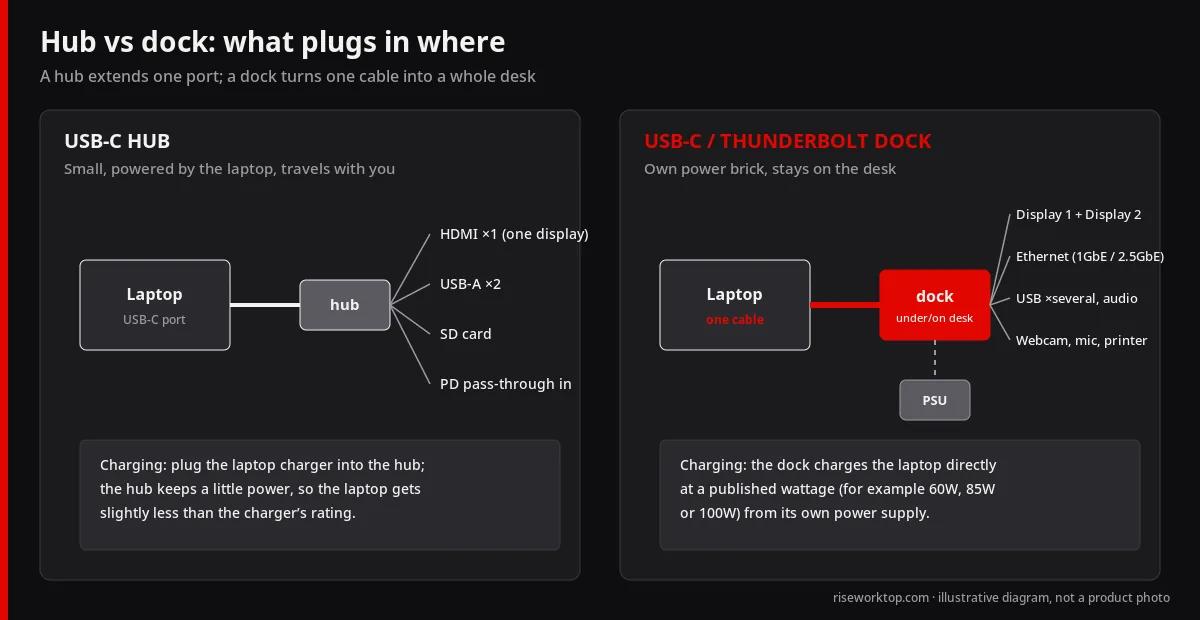
USB-C hub
- Usually small and powered by the laptop (bus-powered)
- Often includes an HDMI port, a couple of USB-A ports, an SD card reader, and power delivery (PD) pass-through
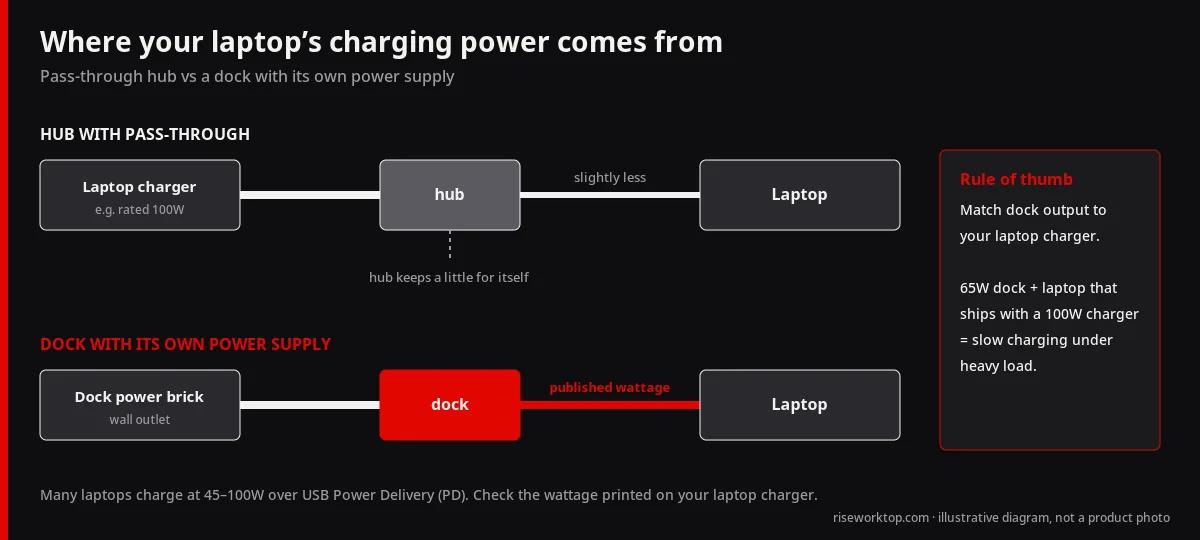
- Pass-through charging requires plugging your laptop charger into the hub; the hub keeps a little power for itself, so the laptop receives slightly less than the charger’s rating
- Great for travel and light desk use
USB-C or Thunderbolt dock
- Usually has its own power brick and sits on or under the desk
- More ports: multiple video outputs, Ethernet, several USB ports, audio
- Charges the laptop directly, often at a published wattage (for example, 60W, 85W, or 100W)
- Designed to stay put, so one cable connects your laptop to everything
The standards that decide what works
You do not need to memorize specs, but a few terms matter:
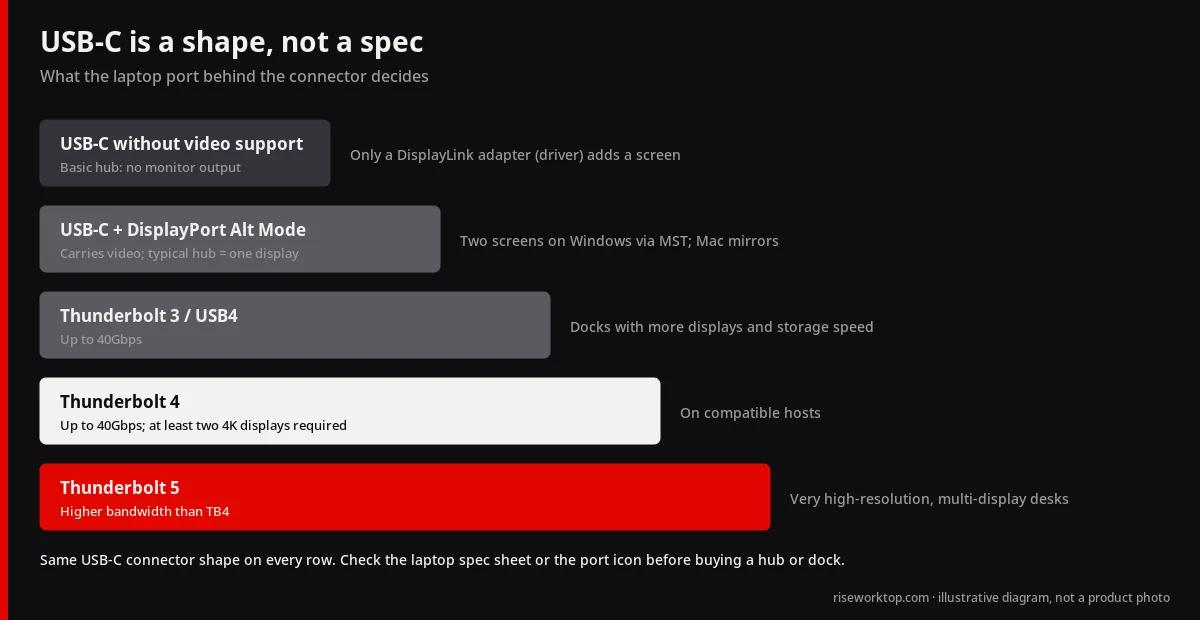
- USB-C is a connector shape, not a guarantee of speed or video.
- DisplayPort Alt Mode lets a USB-C port carry video. If your laptop’s USB-C port does not support it, a basic hub cannot output video (unless it uses DisplayLink — see below).
- USB Power Delivery (PD) is the charging standard; many laptops charge at 45–100W, and newer extended-power options go higher.
- Thunderbolt 3 and 4 and USB4 offer up to 40Gbps. Thunderbolt 4 requires support for at least two 4K displays on compatible hosts. Thunderbolt 5 raises bandwidth further.
- MST (Multi-Stream Transport) lets one DisplayPort signal drive multiple monitors. Windows generally supports MST for extended desktops; macOS does not use MST for extended displays, which is why some multi-monitor hubs only mirror on Macs.
- DisplayLink uses a driver and compresses video over USB, so it can add displays beyond a laptop’s native limit. It needs software installed and may have limits with some protected video content and high-motion use.
Comparison dimensions
1. Number of monitors
This is the biggest decision point. A basic hub typically supports one external display. If you want two, confirm three things: your laptop’s maximum external display count, the dock’s supported configuration for your operating system, and the refresh rate at your resolution. Our monitor size and resolution guide helps you decide whether one larger screen can replace two. If you do go dual, pair the dock with a proper arm setup from the dual monitor arm guide.
2. Resolution and refresh rate
Many budget hubs list “4K” but only at 30Hz over HDMI, which feels sluggish for cursor movement. For a 4K monitor, look for 4K at 60Hz (HDMI 2.0 or DisplayPort 1.4 class output). For 1440p monitors, 60Hz is standard for office work; higher refresh needs more bandwidth.
3. Charging power
Check your laptop’s charger wattage. A dock that delivers 65W to a laptop that ships with a 100W charger may charge slowly under heavy load. For hubs, remember that pass-through reduces available power slightly.
4. Ports you will really use
List every device that lives on the desk: keyboard, mouse receiver, webcam, microphone, headset, external drive, printer, phone charging. Our keyboard and mouse guide and webcam vs laptop camera guide help you decide what belongs on the desk in the first place. Add one or two spare ports for the future.
5. Ethernet
Wired Ethernet can be more consistent than Wi-Fi for video calls in some homes. Docks commonly include 1GbE; some offer 2.5GbE. Hubs sometimes include Ethernet but in a more cramped package.
6. Heat and placement
Hubs and docks get warm under load. Give them airflow, and avoid stuffing a hot hub inside a sealed cable box.
Approximate budgets (US, as of September 2026)
| Type | Approx. range | Typical use |
|---|---|---|
| Basic USB-C hub | About $20–$60 | One display, a few USB ports, SD card, pass-through charging |
| USB-C dock (own power) | About $80–$200 | Multi-port desk base, Ethernet, one or two displays depending on system |
| DisplayLink dock | About $120–$300 | Extra displays on laptops with native display limits |
| Thunderbolt 4 / USB4 dock | About $150–$400 | High-bandwidth, multi-display, strong charging |
| Thunderbolt 5 dock | Premium | Future-proofing and very high-resolution setups |
Prices change often; use these ranges to set expectations, then compare current spec sheets.
Standing desks and cable management
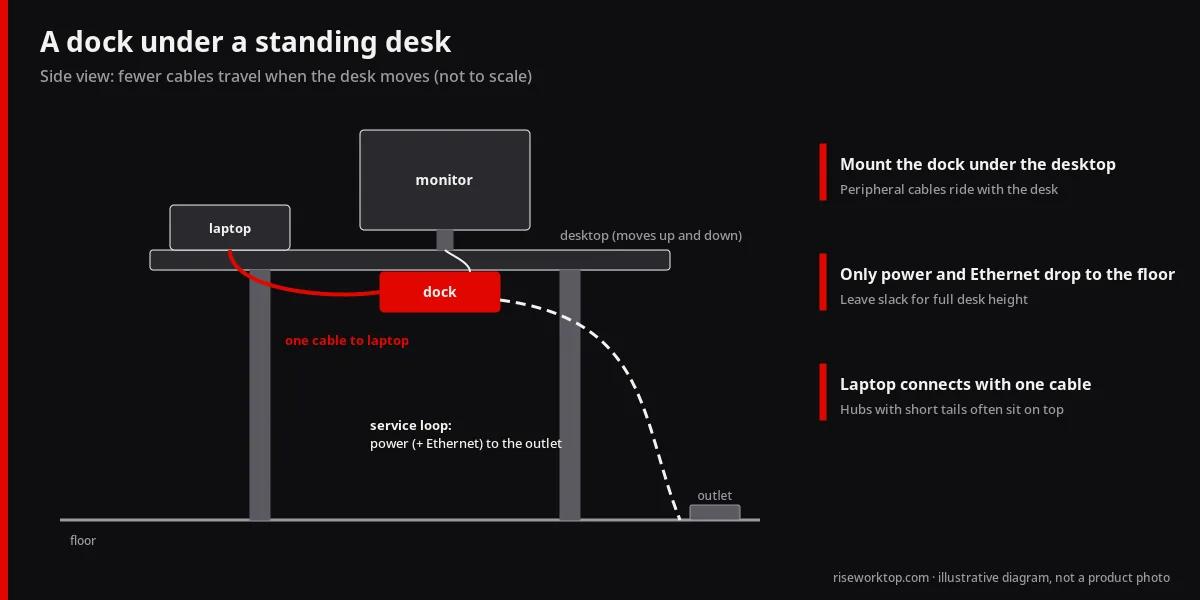
A dock is one of the best cable-management upgrades for a standing desk. Mount it under the desktop so all peripheral cables move with the desk, and only the dock’s power cord and, optionally, Ethernet need slack to the floor. The laptop connects with a single cable. See cable management for standing desks for tray and service-loop layout.
A hub can work the same way, but its short attached cable often forces it to sit near the laptop, which can clutter the desktop.
Mac vs Windows notes
- Windows laptops with Thunderbolt or DisplayPort Alt Mode usually support extended multi-monitor setups through MST hubs or Thunderbolt docks, subject to the GPU’s limits. Port checks, charging ceilings, and dock examples are in Thunderbolt dock for a Windows laptop.
- Macs vary by chip. Some base-chip models support fewer external displays than Pro or Max chips. Check Apple’s technical specifications for your exact model before buying a dual-display dock. DisplayLink docks are a common workaround for extra displays, with the software trade-offs noted above.
- Chromebooks support many docks, but check the manufacturer’s compatibility notes.
Checklist before you buy
- Laptop port type: USB-C with DisplayPort Alt Mode, Thunderbolt, or USB4
- Laptop’s maximum number of external displays
- Monitor resolutions and required refresh rates
- Laptop charger wattage vs dock charging output
- Device list with a couple of spare ports
- Ethernet needed or not
- Where the hub or dock will live (desk, under desk, behind a monitor)
- Return window in case display support is not what you expected
Common mistakes
- Buying a “dual HDMI” hub for a Mac and getting mirrored screens
- Accepting 4K at 30Hz without realizing it
- Using a hub with pass-through charging and a charger that is already borderline for the laptop
- Forgetting that a USB-C port without video support cannot drive a monitor through a basic hub
- Hiding a hot dock in a closed box
Models worth checking (as of Oct 2026)
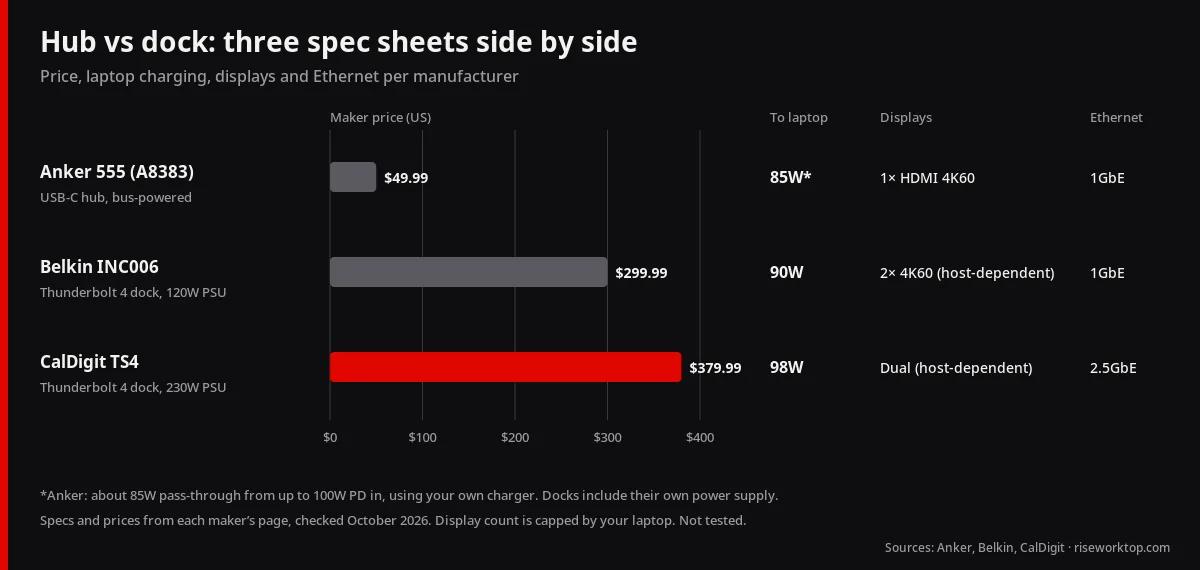
Hub vs dock is mostly about power brick + display bandwidth. Specs below are from manufacturer pages—not hands-on tests. Prices checked Oct 2026; they change.
Anker 555 USB-C Hub (8-in-1), model A8383
- Approx. US price: $49.99 (Anker US).
- Key specs (per Anker): PD in up to 100W with about 85W laptop pass-through; HDMI 4K@60Hz; 2× USB-A 10Gbps; 1× USB-C 10Gbps data; 1 Gbps Ethernet; SD + microSD (UHS-I); ~4.76 × 2.17 × 0.6 in, ~4.5 oz.
- Spec source: Anker 555 USB-C Hub (8-in-1).
- Not a good fit if… you need dual external displays from one hub, Thunderbolt-class bandwidth, or a dock with its own high-watt PSU always attached to the desk.
CalDigit TS4 (Thunderbolt Station 4)
- Approx. US price: $379.99 (CalDigit US shop).
- Key specs (per CalDigit): 18 ports including 3× Thunderbolt 4 (40Gb/s), DisplayPort 1.4, 2.5GbE, SD/microSD UHS-II; host charging up to 98W; includes 230W PSU and 0.8 m Thunderbolt cable; dual-display support depends on host (CalDigit documents Mac/Windows limits).
- Spec source: CalDigit TS4 and CalDigit TS4 overview.
- Not a good fit if… you only need one HDMI/portable hub for travel, or your laptop is USB-C-only without Thunderbolt/USB4 (expect reduced functionality).
Belkin Connect Pro Thunderbolt 4 Dock (INC006)
- Approx. US price: $299.99 (Belkin US; stock varies).
- Key specs (per Belkin): 12 ports including 2× Thunderbolt 4, 2× HDMI 2.0, Gigabit Ethernet, SD, USB-A/USB-C; up to 90W Power Delivery to the host; up to 8K@30Hz single or dual 4K@60Hz (host-dependent); includes 0.8 m Thunderbolt 4 cable and 120W PSU; 2-year warranty.
- Spec source: Belkin Pro Thunderbolt 4 Dock.
- Not a good fit if… you need 2.5GbE / UHS-II readers like the TS4, or your Mac is base M1/M2 with a single external-display limit (the dock cannot exceed the host).
Prices checked Oct 2026; they change. Always match display count to your laptop’s GPU/TB limits.
FAQ
Is a USB-C hub the same as a dock?
Not exactly. Hubs are usually small and bus-powered with fewer ports; docks usually have their own power supply, more ports, and better multi-display and charging support.
Can a USB-C hub charge my laptop?
Many hubs offer pass-through charging if you plug your laptop’s charger into the hub. The laptop receives slightly less than the charger’s rating.
Do I need Thunderbolt?
Not always. A good USB-C dock handles one or two displays on many systems. Thunderbolt or USB4 becomes more valuable for multiple high-resolution monitors, fast external storage, and maximum compatibility with Thunderbolt laptops.
Why do my two monitors show the same image on a Mac?
Many multi-monitor hubs rely on MST, which macOS does not use for extended displays. Use a Thunderbolt dock on a Mac model that supports multiple displays, or a DisplayLink-based dock.
Is DisplayLink good for office work?
For spreadsheets, documents, and browsing, many people find it works well. It requires driver software and may have limitations with some protected video and gaming.
Bottom line
Buy a hub for portability and a simple single-monitor setup. Buy a dock for a true one-cable desk with multiple monitors, Ethernet, and dependable charging. Confirm your laptop’s video support and display limit first, insist on 60Hz at your resolution, and mount the dock where cables stay tidy.