
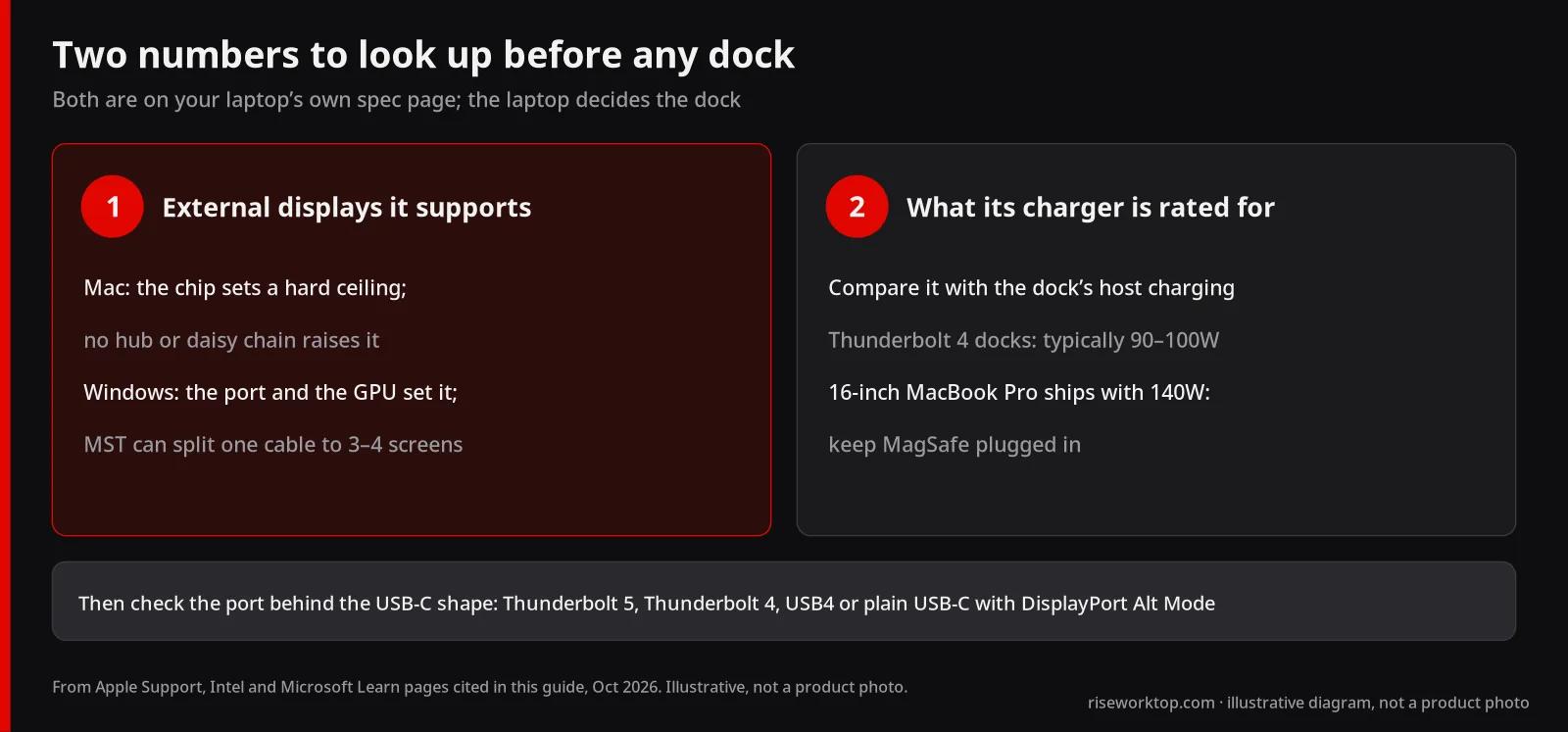
The laptop decides the dock, not the other way round. On a MacBook, Apple's chip sets a hard ceiling on external displays, and Apple says no hub or daisy chain raises it. On a Windows laptop, the port behind the USB-C shape (Thunderbolt, USB4 or plain USB-C) and the laptop's graphics set the ceiling, and MST lets a good dock split one cable into three or four screens. So I'd look up two numbers on the laptop's own spec page before I looked at a single dock: how many external displays it supports, and what its charger is rated for.
Research note: AI-assisted research and writing, not hands-on tested. Written by Rhett Varley. No docks, Macs or PCs were tested for this page, so every opinion here is a judgment from published specs, prices and documentation. Port standards come from Intel and Microsoft Learn, Mac display and charging limits from Apple Support pages, and dock specs and prices from each maker's page, checked October 19, 2026 (how we research). For the simpler hub-or-dock decision, start with USB-C dock vs hub.
Quick answer
| Your laptop | What I'd buy | Check first |
|---|---|---|
| MacBook Air M4 or M5, one or two monitors | Any certified Thunderbolt 4 dock with two video outputs | Apple lists two external displays, both possible over a single Thunderbolt port |
| MacBook Air or Pro with a base M1 or M2, two monitors | A DisplayLink dock, or one bigger monitor instead | These chips drive one external display natively |
| MacBook Pro M4 Pro/Max or M5 Pro/Max | A Thunderbolt 4 or 5 dock for ports and charging; the laptop's own HDMI and SD slot may cover the rest | Chip limit: two (M4 Pro), three (M5 Pro) or four (M4 Max, M5 Max) |
| 16-inch MacBook Pro | Dock for displays and peripherals, MagSafe charger kept plugged in | Apple ships a 140W adapter; docks top out around 90–100W |
| Windows laptop with Thunderbolt 4/5, one or two monitors | Any certified Thunderbolt 4 dock | Laptop spec sheet lists at least two external displays |
| Windows Thunderbolt 4/USB4, three or four monitors | A dock that documents 3–4 displays on Windows over MST | Laptop GPU supports that many; four 4K screens usually need DSC |
| Windows USB4 port not labeled Thunderbolt | A USB4- or Thunderbolt 4-certified dock that lists USB4 hosts | USB4 only guarantees 20 Gbps and one display |
| Plain USB-C with DisplayPort Alt Mode | A USB-C dock, or DisplayLink for extra screens | A Thunderbolt dock runs with reduced functionality |
| Company-managed laptop | Same-brand dock (Dell, Lenovo, HP, Surface) | MAC pass-through, PXE boot and firmware tools are often brand-limited |
Step 1: know the port you actually have
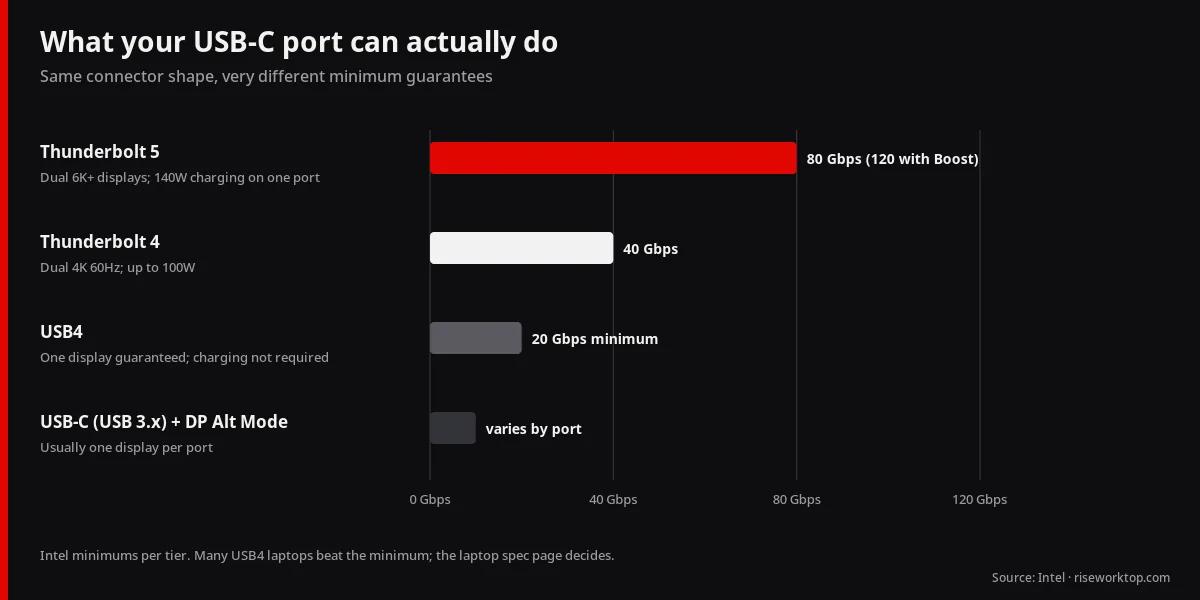
"USB-C" is just the connector shape. Intel publishes minimums for each tier, and the gap between them is the whole reason a cheap hub and a $300 dock behave differently:
| Laptop port | Minimum bandwidth (Intel) | Minimum display support | Laptop charging requirement |
|---|---|---|---|
| Thunderbolt 5 | 80 Gbps bidirectional; up to 120 Gbps transmit with Bandwidth Boost | Up to dual 8K 60Hz (dual 6K required on PCs) | Up to 140W required on at least one port; up to 240W on some |
| Thunderbolt 4 | 40 Gbps | Dual 4K 60Hz | Up to 100W |
| USB4 | 20 Gbps minimum | One display | Not required |
| USB-C (USB 3.x) with DisplayPort Alt Mode | Varies by port | Usually one display per port | Varies |
Sources: Intel: Thunderbolt 5 vs Thunderbolt 4 vs USB4 and the Intel Thunderbolt overview. Many USB4 laptops beat the USB4 minimum, but the guarantee is lower, so the laptop's spec page decides.
On a Mac: Apple's spec pages name the port. The 13-inch MacBook Air with M5 has two Thunderbolt 4 ports. The 14-inch MacBook Pro with M5 Pro or M5 Max has three Thunderbolt 5 ports plus HDMI, an SDXC slot and MagSafe 3. On Windows 11: look for the lightning-bolt icon by the port and the "Ports" line of the spec sheet. On USB4 systems, Microsoft documents a page at Settings → Bluetooth & devices → USB → USB4 Hubs and Devices. If it doesn't appear, Windows hasn't detected a USB4 host router (Microsoft Learn).
Thunderbolt dock for MacBook
The display ceiling is set by the chip
Apple publishes the external display count for each chip. Here's what its support pages list for current and recent MacBooks:
| MacBook chip | External displays (Apple) | Notes from Apple |
|---|---|---|
| MacBook Air M4, M5 | Up to 2 | Two at up to 6K 60Hz or 4K 144Hz; both can run over a single Thunderbolt port |
| MacBook Pro M5, M4, M4 Pro | Up to 2 | Two at up to 6K 60Hz or 4K 144Hz over Thunderbolt or HDMI |
| MacBook Pro M5 Pro | Up to 3 | Three at up to 6K 60Hz or 4K 144Hz |
| MacBook Pro M4 Max, M5 Max | Up to 4 | Four at up to 6K 60Hz or 4K 144Hz |
| MacBook Pro M3 | Up to 2 with the lid closed | Clamshell mode required for the second display |
| MacBook Pro M2 Pro, M3 Pro | Up to 2 | |
| MacBook Pro M2 Max, M3 Max | Up to 4 | |
| Base M1 and M2 MacBooks | 1 | Per Plugable's dock notes; CalDigit and Belkin also say original M1 Macs get one extended screen |
Sources: Apple: displays on MacBook Pro and MacBook Air, both published March 10, 2026; Plugable TBT4-UDZ display notes. Closing the lid doesn't add displays on M4 and M5 models, according to Apple.
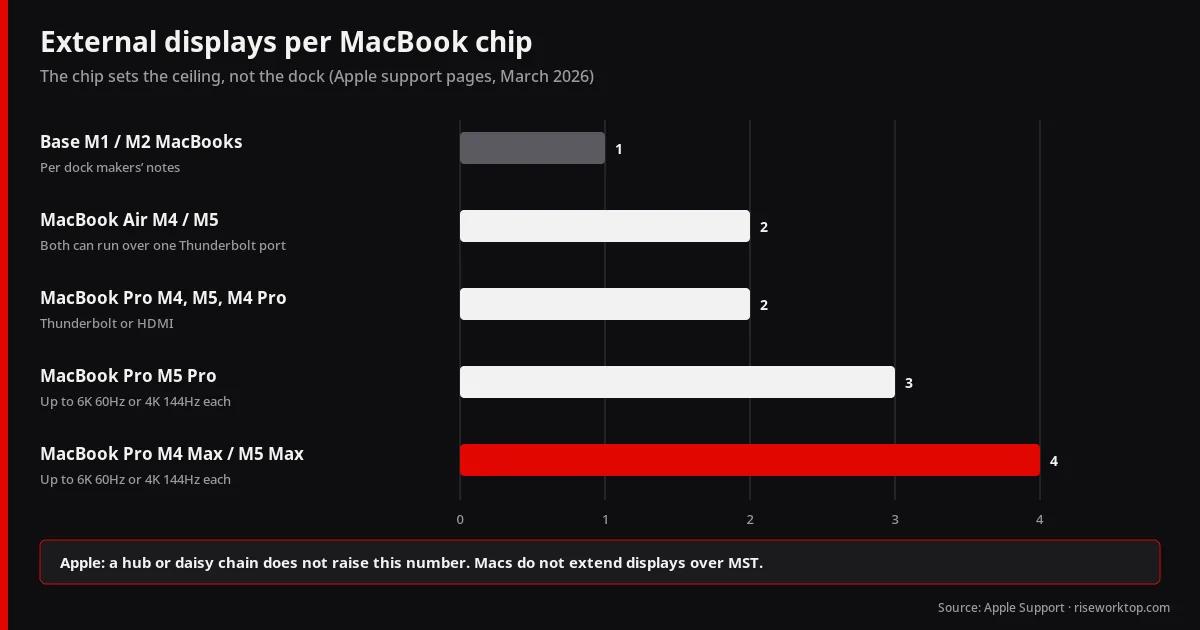
Two lines on Apple's pages matter more than any dock box. First, "using a supported hub or daisy-chaining displays ... does not increase the maximum number of displays." Second, connect the highest-resolution display first. Plugable adds the reason multi-head hubs disappoint Mac owners: even Apple's Pro and Max chips don't support DisplayPort MST, and base M1 and M2 chips are limited to one external screen, so a dual-HDMI "MST" hub can't give a Mac extra extended displays.
My position: on an M3, M4 or M5 MacBook Air or base Pro, a Thunderbolt 4 dock with two outputs is all you need for two screens. On a base M1 or M2, I'd buy one larger monitor before I'd fight the limit. If you truly need two, a DisplayLink dock adds screens through software. Synaptics' DisplayLink Manager for macOS lists support from Sonoma 14 through the current releases (version 17.0, September 18, 2026), but it's still an app and driver you install and keep updated (Synaptics). Choosing one excellent screen is often the happier path: see monitor size and resolution, including ultrawide vs dual.
Charging: match the brick, and keep MagSafe for the 16-inch
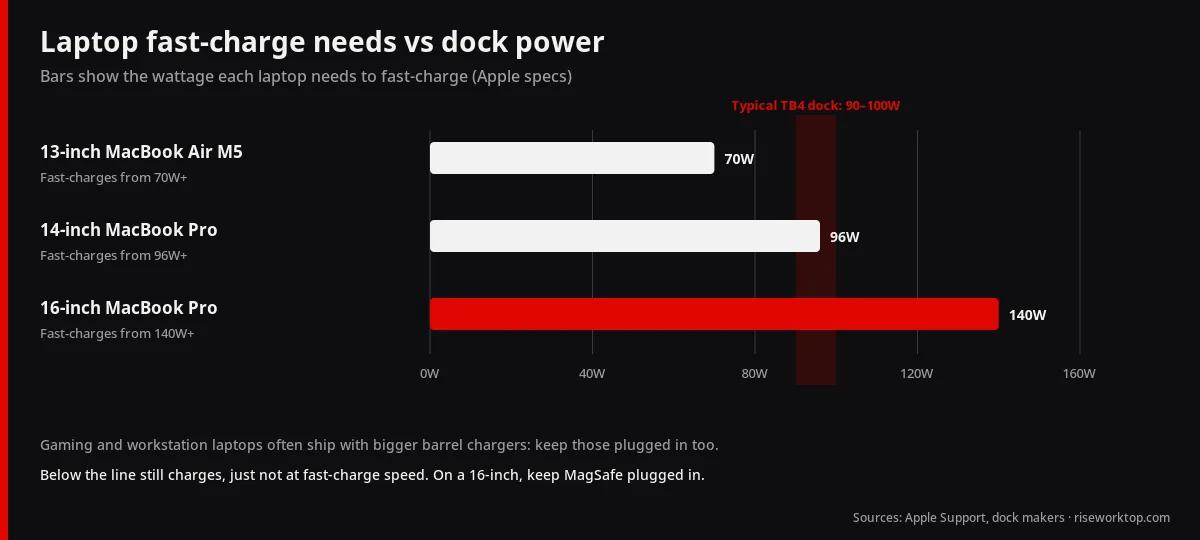
Apple's specs give clear targets:
- 13-inch MacBook Air M5: ships with a 40W Dynamic Power Adapter (60W max) and fast-charges from a 70W or higher USB PD source. Any Thunderbolt 4 dock in this guide covers it.
- 14-inch MacBook Pro: ships with a 70W or 96W adapter depending on the chip, and fast-charges from 96W or higher. A 96–98W dock matches the bigger brick.
- 16-inch MacBook Pro: ships with a 140W adapter and fast-charges from 140W or higher. No dock here reaches that.
Apple also says a USB-C Mac will charge from a lower-wattage USB PD source than its recommended adapter, so a 98W dock still charges a 16-inch. It just won't fast-charge it by Apple's own list (Apple: fast charging, Apple: power adapters). My take: on a 16-inch, let the dock carry displays and peripherals and leave the MagSafe charger plugged in. That's two cables, and I'd accept it.
Do Pro owners even need a big dock?
The M5 Pro and Max MacBook Pro already has HDMI, an SD slot and MagSafe. If one monitor runs from HDMI and the charger sits on MagSafe, a dock mostly adds Ethernet and USB-A. I'd pay for a full Thunderbolt dock on a Pro only for one-cable convenience at a desk you return to daily, or for a second and third display. Otherwise a smaller hub covers the leftovers. Some displays accept Thunderbolt and charge the Mac themselves, which shrinks the dock's job further.
Thunderbolt dock for a Windows laptop
Displays: MST, DSC and 60Hz
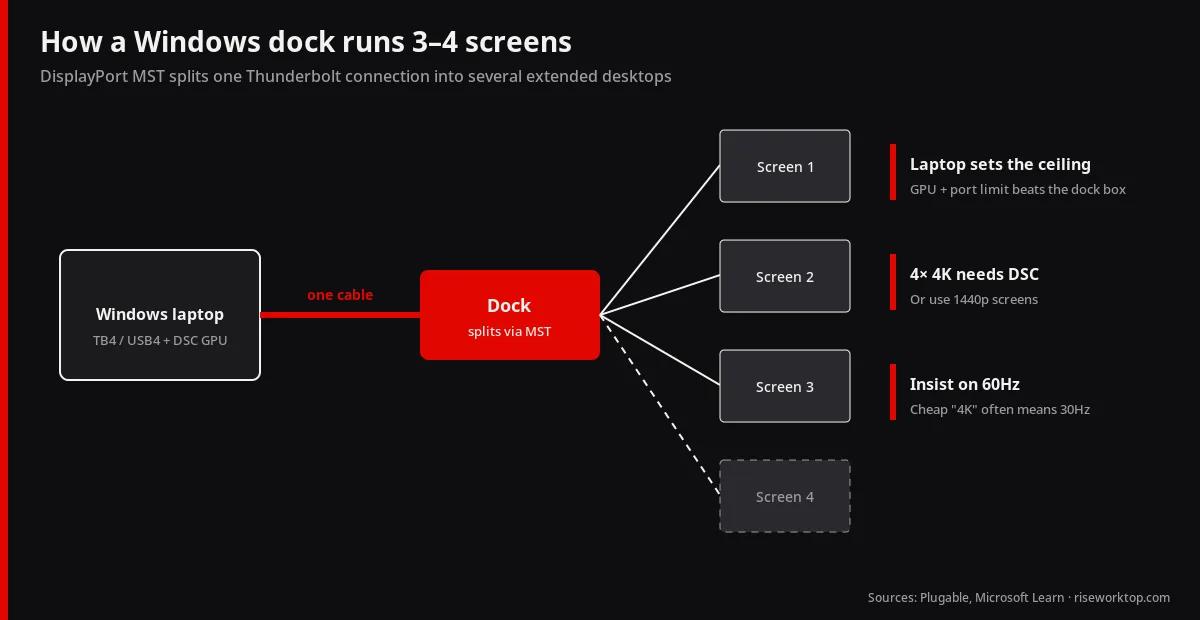
Windows supports DisplayPort MST (Multi-Stream Transport), which lets one dock split a single connection into several extended desktops. That's why docks list more displays for Windows than for Macs. Plugable, for example, documents up to four 4K 60Hz extended displays on Thunderbolt 4 / USB4 Windows systems whose graphics support DisplayPort 1.4 HBR3 with DSC, and two on Apple M-series Pro and Max Macs.
Three rules keep you out of trouble:
- The laptop sets the ceiling, not the dock. A dock that lists four displays can't exceed what your laptop's GPU and port support. Plugable notes that many Thunderbolt 4 laptops need the internal display disabled in Windows Display Settings to run four externals.
- Four 4K screens need DSC. Without Display Stream Compression, multi-4K setups drop resolution or refuse a screen. Several 2560×1440 monitors are easier on bandwidth.
- Insist on 60Hz at your resolution. "4K" on a cheap hub often means 4K at 30Hz.
If you need more screens than the laptop supports natively, a DisplayLink dock adds them through a driver. Synaptics' current Windows release notes list Windows 10 and 11 on x64 and ARM64 (Snapdragon laptops), with the MSI installer excluding ARM64 (Synaptics DisplayLink for Windows). Expect a driver install and possible limits with protected video.
Charging: the 100W ceiling
Thin-and-light Windows laptops often ship with 65–100W chargers, which a Thunderbolt 4 dock can usually match. Bigger machines are the problem. Universal docks cluster at 90–100W: CalDigit lists up to 98W, Plugable 100W (98W to the host), Lenovo up to 100W. Dell lists its WD25TB4 at up to 130W for Dell systems and 96W for other brands. Microsoft's Surface USB4 Dock provides 65W pass-through (Microsoft Learn). Gaming and mobile-workstation laptops often ship with high-wattage barrel chargers. Use the dock for displays and peripherals and keep the original charger connected.
Match the dock's host charging figure, not the size of its power brick, to the charger that came with your laptop.
Brand-matched docks vs universal docks
Dell, Lenovo, HP and Microsoft all sell their own docks. The extras matter mostly in managed offices: MAC address pass-through keeps the laptop's network identity, PXE boot and Wake-on-LAN let IT image or wake a docked machine, and firmware updates arrive through brand tools. Lenovo's datasheet says MAC pass-through and Wake-on-LAN work on most ThinkPads but may not on other laptops. My view: for a personal laptop, a universal Thunderbolt 4 dock is simpler. For a work laptop, ask IT which dock they support before you spend your own money.
If a monitor doesn't show up on Windows
- Use the dock's included cable and its host port. Plugable notes its rear USB-C port won't connect a laptop.
- Update firmware and graphics drivers with the laptop maker's tool and Windows Update.
- Check the event log on USB4 systems. Microsoft documents a USB4 event (Event ID 2, source USB-USB4DeviceRouter-EventLogs) saying a monitor couldn't be enumerated because the dock or system lacked resources or bandwidth (Microsoft Learn). That's a display-count or bandwidth limit, not a broken cable.
- Drop one screen to 1440p or 60Hz to test whether bandwidth is the limit.
Models worth checking (as of Oct 2026)
Not rankings and not tests. Specs and prices come from each maker's page on October 19, 2026, and they change. A dash means the maker's page didn't state it.
| Dock | Price (maker) | Host charging | Ethernet | Mac displays (maker) | Windows displays (maker) |
|---|---|---|---|---|---|
| CalDigit TS4 | $379.99 | Up to 98W | 2.5GbE | Dual 6K 60Hz on M1 Pro/Max-class; original M1 no dual | Dual 4K 60Hz |
| Plugable TBT4-UDZ | $289.99 | 100W (98W to host) | 2.5GbE | 2× 4K 60Hz on M3/M4/M5 and all Pro/Max; 1× on base M1/M2 | Up to 4× 4K 60Hz with DSC |
| OWC 11-Port Thunderbolt Dock | $229.99 | Up to 96W | Gigabit | Dual 4K or one 8K, host-dependent | Works on Thunderbolt 4 PCs; host-dependent |
| Belkin Pro Thunderbolt 4 Dock (INC006) | $299.99 | Up to 90W | Gigabit | Dual HDMI 2.0 at 4K 60Hz; M1 gets one extended screen | Dual HDMI 2.0 |
| Dell Pro Thunderbolt 4 Dock WD25TB4 | $299.99 | 130W Dell / 96W others | 2.5GbE | — | Up to 4 (4K 60Hz quad listed) |
| Lenovo ThinkPad Universal Thunderbolt 4 Dock (40B0) | Not captured | Up to 100W | Gigabit | — | One 8K 30Hz or up to four 4K 60Hz |
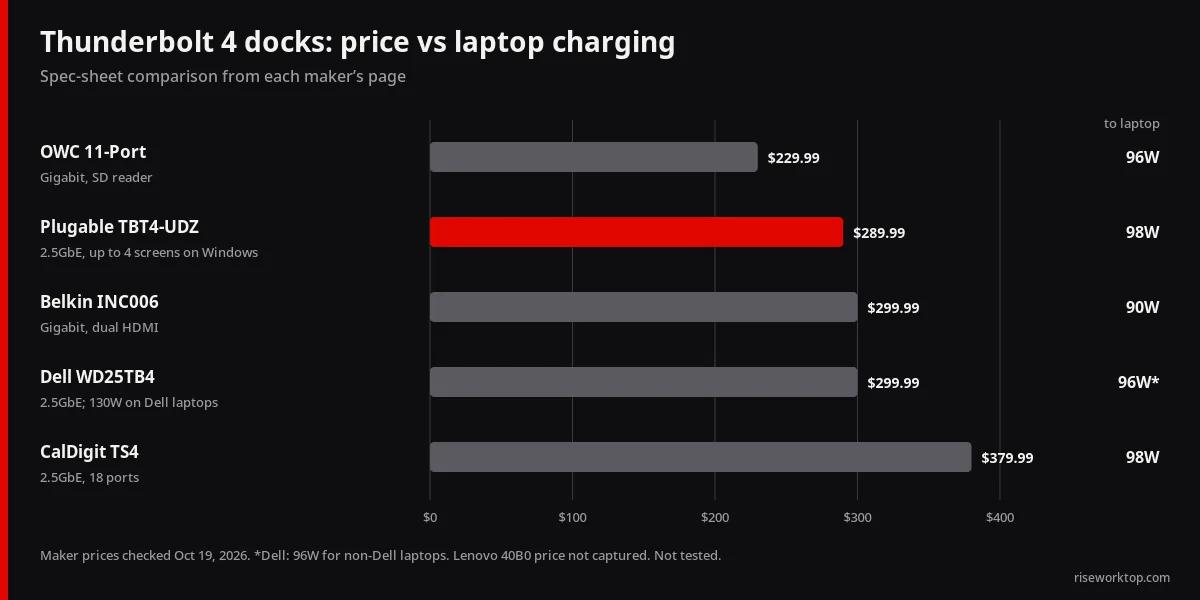
CalDigit TS4. 18 ports, three Thunderbolt 4, DisplayPort 1.4, UHS-II SD and microSD, 230W power supply, 2-year warranty. My take: the most ports on one cable, at the highest price here. Worth it for a Mac with card-heavy photo work. It's the wrong dock if you want three or four screens on Windows.
Plugable TBT4-UDZ. 16 ports including two HDMI and two DisplayPort, SD and microSD, audio. My take: the most flexible pick for a household with both a Mac and a Windows laptop, because it publishes clear display numbers for each. The extra outputs sit idle on a laptop without DSC.
OWC 11-Port. Three Thunderbolt ports, SD reader, 0.8 m Thunderbolt 4 cable included, 2-year warranty. My take: $150 less than the TS4 for most of what a two-screen Mac desk needs. Skip it if you want 2.5GbE.
Belkin INC006. 12 ports, Thunderbolt 4 certified, macOS 11 or later, 2-year warranty. My take: fine if both monitors take HDMI. At $299.99 it costs more than the Plugable while charging less (90W vs 100W) and offering no DisplayPort or 2.5GbE, so I'd pick the Plugable first.
Dell WD25TB4. Two DisplayPort 1.4, HDMI 2.1, USB-C with DisplayPort, two Thunderbolt 4, MAC pass-through, PXE and Wake-on-LAN, 3-year warranty. My take: the obvious choice for a Dell laptop that can use the 130W tier. On a non-Dell needing more than 96W, look elsewhere.
Lenovo 40B0. Two DisplayPort 1.4, HDMI 2.1, Thunderbolt 4 downstream, PXE, WOL and MAC pass-through, 3-year warranty. My take: buy it for a ThinkPad, especially a managed one. No SD reader or 2.5GbE.
My ranking, from the spec sheets: mixed Mac and Windows household, Plugable. Mac with lots of cards and drives, CalDigit. Two-screen Mac on a budget, OWC. Dell or ThinkPad work laptop, the matching brand dock. Budget bands for docks sit in our home office budget ranges.
Placement, cables and approximate budgets
Use the Thunderbolt cable the dock maker includes. A random USB-C charge cable may not carry full Thunderbolt data, and longer passive cables have limits. Mount the dock under the desk with a metal bracket or strong Velcro, keep vents clear, and route the cable so it reaches the laptop at both sitting and standing heights. Power it from the same traveling surge strip as the monitors (cable management and power for standing desks). For three or four screens, check the physical fit too: desk depth for dual monitors and the dual monitor arm guide.
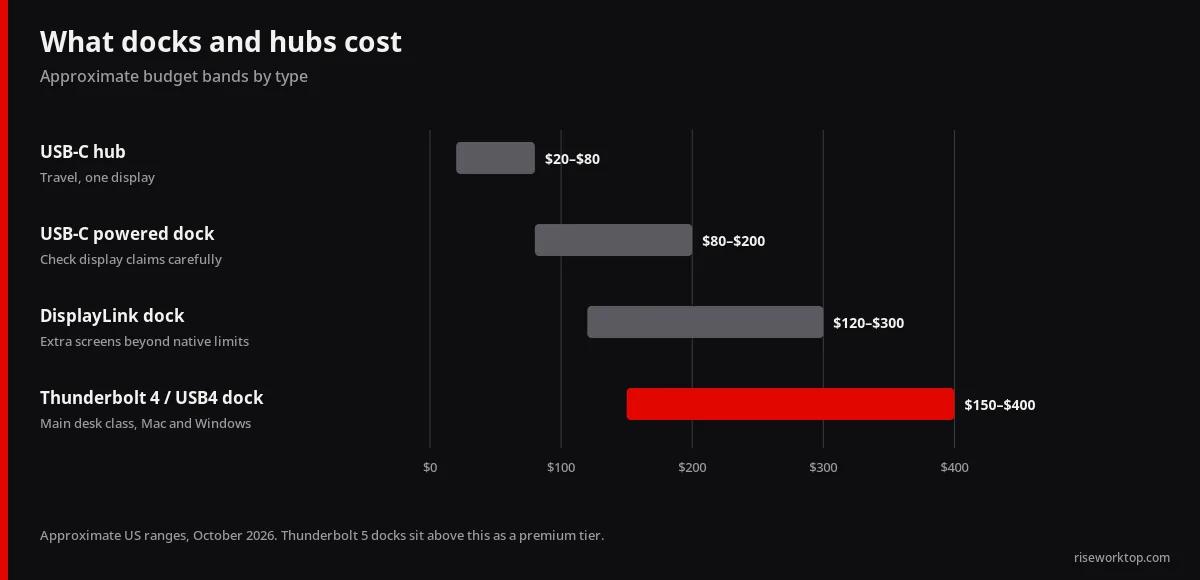
| Type | Approx. range (US, Oct 2026) | Role |
|---|---|---|
| USB-C hub | $20–$80 | Travel, one display |
| USB-C powered dock | $80–$200 | Mixed; check display claims carefully |
| Thunderbolt 4 / USB4 dock | $150–$400 | The main desk class for both Mac and Windows |
| DisplayLink dock | $120–$300 | Extra displays beyond native limits |
| Thunderbolt 5 dock | Premium | Newer TB5 laptops |
Docks occasionally need firmware updates through vendor tools. After a major macOS or Windows upgrade, recheck multi-display arrangements before an important week and keep a direct HDMI cable as a fallback.
Checklist before you buy
- Port type confirmed: Thunderbolt 4/5, USB4 or plain USB-C with DisplayPort Alt Mode
- Mac: chip's external display limit from Apple; Windows: laptop's display count and DSC support
- Monitor inputs counted (HDMI vs DisplayPort), 60Hz at your resolution
- Laptop charger wattage vs the dock's host charging
- Ethernet needed? 2.5GbE only helps with a 2.5GbE router or switch
- Work laptop? Ask IT about brand-matched docks
- Under-desk mount and slack for sit-stand travel
- Return window in case display behavior surprises you
FAQ
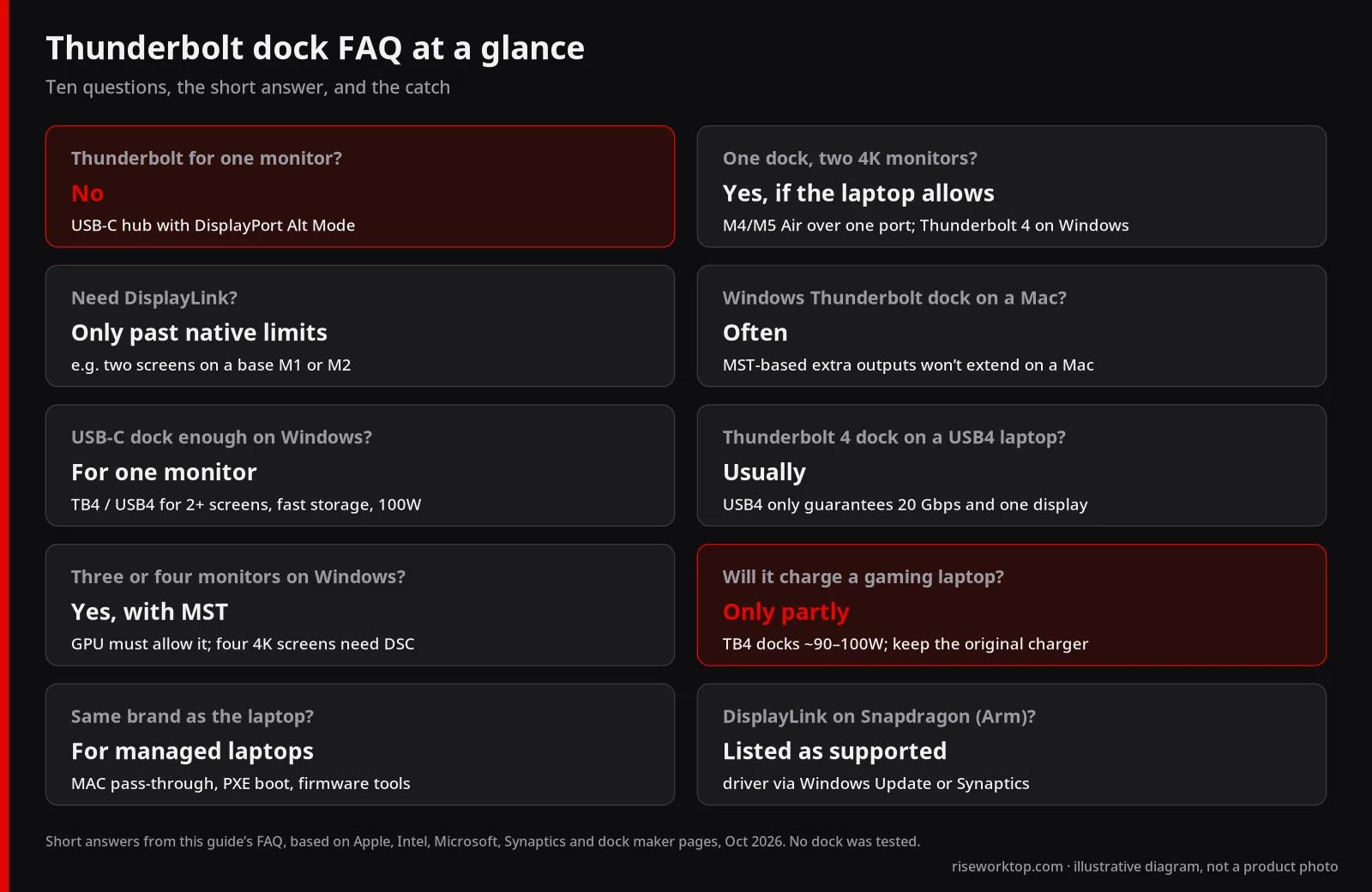
Is Thunderbolt required for one monitor?
No. A USB-C hub drives one display if the laptop's port supports DisplayPort Alt Mode, on a Mac or a PC.
Can one Thunderbolt dock drive two 4K monitors?
On Macs whose chip supports two external displays, yes, and Apple says M4 and M5 MacBook Air models can run both over a single Thunderbolt port. On Windows, a Thunderbolt 4 laptop is required to support dual 4K 60Hz. Check the dock's stated dual-4K configuration either way.
Do I need DisplayLink?
Only if you need more displays than your laptop supports natively, such as two screens on a base M1 or M2 MacBook. Otherwise native Thunderbolt display paths are simpler.
Will a Windows Thunderbolt dock work on a Mac?
Often, if it's a standards-based Thunderbolt 4 or USB4 dock, but MST-based extra outputs won't extend on a Mac. Check the maker's Mac notes: Plugable, CalDigit, OWC and Belkin all publish them.
Do I need Thunderbolt, or is a USB-C dock enough for a Windows laptop?
A USB-C dock is enough for one external monitor and basic peripherals if the port supports DisplayPort Alt Mode. Choose Thunderbolt 4 or USB4 for two or more monitors, fast storage, or up to 100W charging over one cable.
Will a Thunderbolt 4 dock work on a USB4 laptop?
Usually. CalDigit and Plugable both list USB4 hosts. But USB4 only guarantees 20 Gbps and one display, so check your laptop's own USB4 specs.
Can a Thunderbolt dock run three monitors on Windows?
Yes, if both sides support it. Windows extends displays over MST, and the Dell WD25TB4, Lenovo 40B0 and Plugable TBT4-UDZ list up to four. Your laptop's GPU must support that many, and four 4K screens typically need DSC.
Will a dock charge my gaming laptop?
Often only partly. Thunderbolt 4 docks typically deliver 90–100W, while many gaming laptops ship with higher-wattage barrel chargers. Keep the original charger plugged in.
Should I buy the same brand of dock as my laptop?
For a company-managed laptop, yes, since MAC pass-through, PXE boot and firmware tools are often brand-limited. For a personal laptop, a universal Thunderbolt 4 dock works across brands. Dell's WD25TB4 also charges Dell laptops at 130W vs 96W for others.
Do DisplayLink docks work on Snapdragon (Windows on Arm) laptops?
Synaptics' release notes list Windows 10 and 11 ARM64 as supported, with the MSI installer excluding ARM64. Install the driver from Windows Update or Synaptics' download page, and expect possible limits with protected video.
Sources
- Intel: Thunderbolt 5 vs Thunderbolt 4 vs USB4 requirements and Thunderbolt overview
- Apple: displays on MacBook Pro, displays on MacBook Air, MacBook Air 13-inch M5 specs, MacBook Pro 14-inch M5 Pro/Max specs, fast charging, power adapters
- Microsoft Learn: USB4 settings, USB4 display tunnel events, Surface USB4 Dock
- Synaptics DisplayLink for macOS and for Windows
- CalDigit TS4, Plugable TBT4-UDZ and display capabilities, OWC 11-Port Thunderbolt Dock, Belkin INC006, Dell WD25TB4 (prices and specs checked Oct 19, 2026)
- Lenovo ThinkPad Universal Thunderbolt 4 Dock datasheet
What I'd buy for each laptop
MacBook Air M4 or M5 with two screens: the OWC, or the Plugable if a Windows laptop shares the desk. Base M1 or M2: one bigger monitor and a modest hub. 16-inch MacBook Pro: a 96W-class Thunderbolt dock plus MagSafe left plugged in. Windows ultrabook with two screens: any certified Thunderbolt 4 dock that matches the charger. Three or four screens on Windows: the Plugable, after I'd confirmed DSC. Dell or ThinkPad work laptop: the matching brand dock, after asking IT.